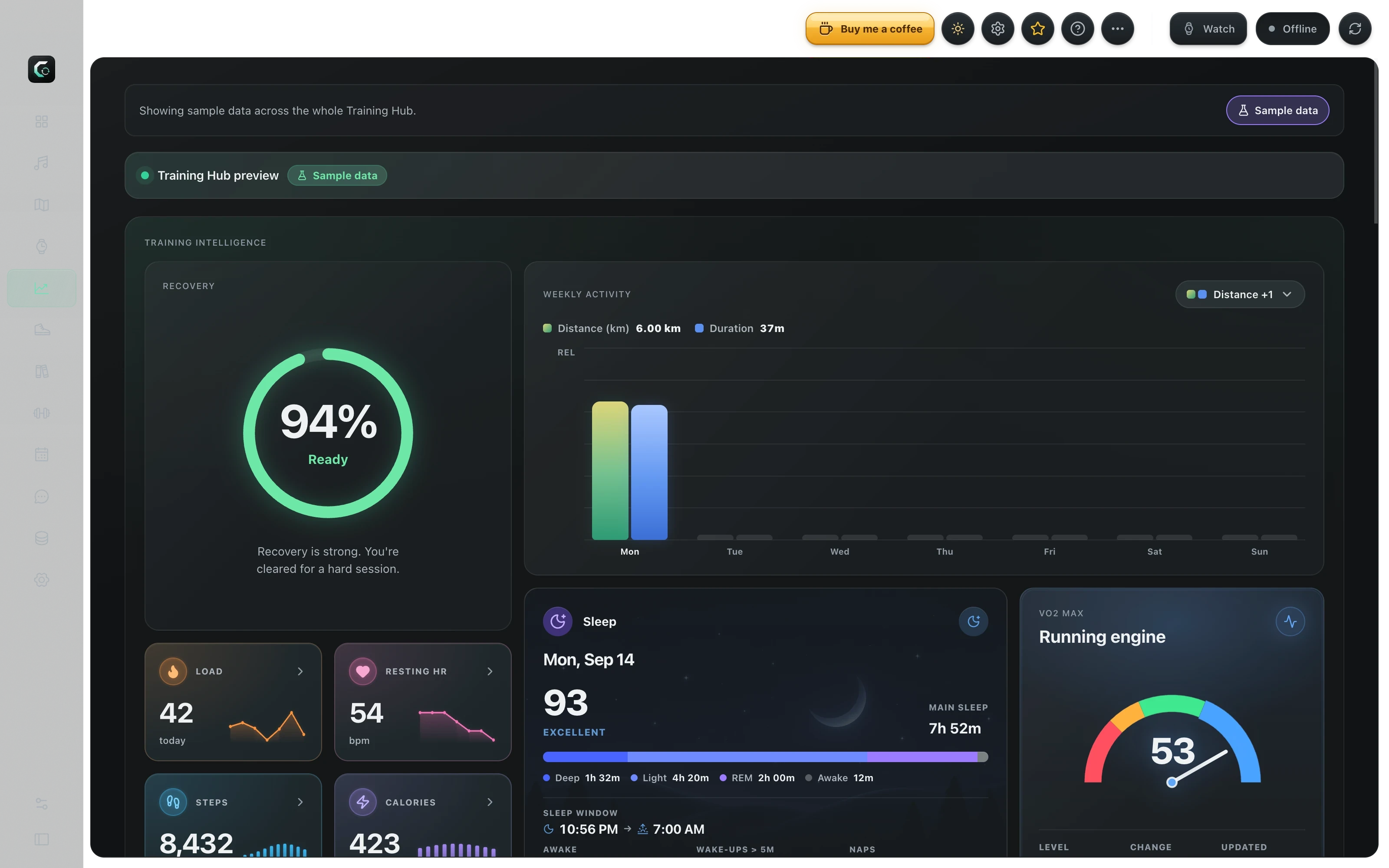
CorosLink's Training Hub signs in to your COROS account and lays out training load, recovery, HRV, EvoLab fitness, race predictions and every activity on a desktop dashboard. Export or back up anything as FIT, GPX, TCX, KML or CSV.
Requires a COROS account. Sample data is shown in the screenshot.
The COROS app and the COROS Training Hub website show your data on a phone or in a browser tab. CorosLink brings the same COROS account data into a native desktop app, with wider charts, a full activities table and a detail panel for laps, heart rate, elevation and strength sets.
It also does what the phone cannot: bulk backup. Download your entire activity history to a folder on your computer in the format you want, and re-run it later to fetch only what is new.
Training Hub · Sample dataLive app capture
What the dashboard shows
Stamina, Recovery, Training Load and Resting HR summary tiles
Recovery readiness ring with stamina overlay
Seven-day Training Load and HRV versus baseline charts
EvoLab fitness: aerobic endurance, lactate threshold, anaerobic endurance and capacity
Race predictor with estimated finish times by distance
Recent activities with laps, heart rate, elevation and more in a detail panel
Sleep score and stages, steps and calories from COROS daily health
Strength and calendar
Strength activities open with set and rep summaries and resolved exercise names, plus muscle coverage analytics and Hevy integration. Planned and completed workouts also land on a calendar that can sync to Google or Apple Calendar.
Export, back up, import
Export any single activity as a FIT file, or back up your whole history as FIT, GPX, TCX, KML or CSV to a local folder. Push activities the other way too: import from intervals.icu or add manual activities to your COROS account.
Your credentials go to COROS, not to us
Training Hub authenticates with COROS's own APIs. Your email and password are sent to COROS at login, activity data is fetched on demand, and nothing is synced to a CorosLink server or any third party.
Step by step
How to view COROS training data on your computer
1
Install CorosLink
Download the free desktop app for macOS, Windows or Linux from the download page.
2
Sign in to COROS
Open Training Hub and sign in with the email and password you use in the COROS app. Choose your account region if prompted.
3
Explore
Recovery, training load, HRV, fitness scores and race predictions load onto the dashboard. Click any activity for laps, heart rate and elevation detail.
4
Back up when you want
Use bulk backup to save every activity as FIT, GPX, TCX, KML or CSV to a folder of your choice.
Is there a COROS Training Hub app for Mac or Windows?
COROS provides Training Hub as a website. CorosLink is an independent desktop app that signs in to your COROS account and shows the same training data natively on macOS, Windows and Linux.
How do I export all my COROS activities at once?
Open Training Hub in CorosLink and run a bulk backup. Pick FIT, GPX, TCX, KML or CSV and a folder; CorosLink downloads your full history and, on later runs, only new activities.
Does CorosLink store my COROS password?
Your credentials are sent to COROS to sign in. CorosLink keeps only the resulting session token, in encrypted OS storage, on your computer.
Can I import workouts into COROS with CorosLink?
Yes. Import activities from intervals.icu or add manual activities, and CorosLink pushes them to your COROS account.
Does the dashboard need my watch connected?
No. Training data comes from your COROS account, so the dashboard works anywhere you have internet. USB is only needed for music, maps and watch faces.