Browse the official COROS Landscape and Topo map regions, download the packages you need to your computer, and copy them to a map-capable COROS watch over USB. CorosLink shows watch storage and copy progress the whole way.
Offline maps require a map-capable COROS watch. Package sizes vary by region; check free storage on the watch before installing.
COROS distributes offline maps as regional packages. Loading them normally means a long download to the phone followed by a slow wireless sync to the watch. CorosLink reads the same official COROS map manifest, downloads packages once to a local cache on your computer, and installs them over USB, which is faster and does not tie up your phone.
Because packages are cached, you can install the same region on a second watch, or reinstall after a reset, without downloading again.
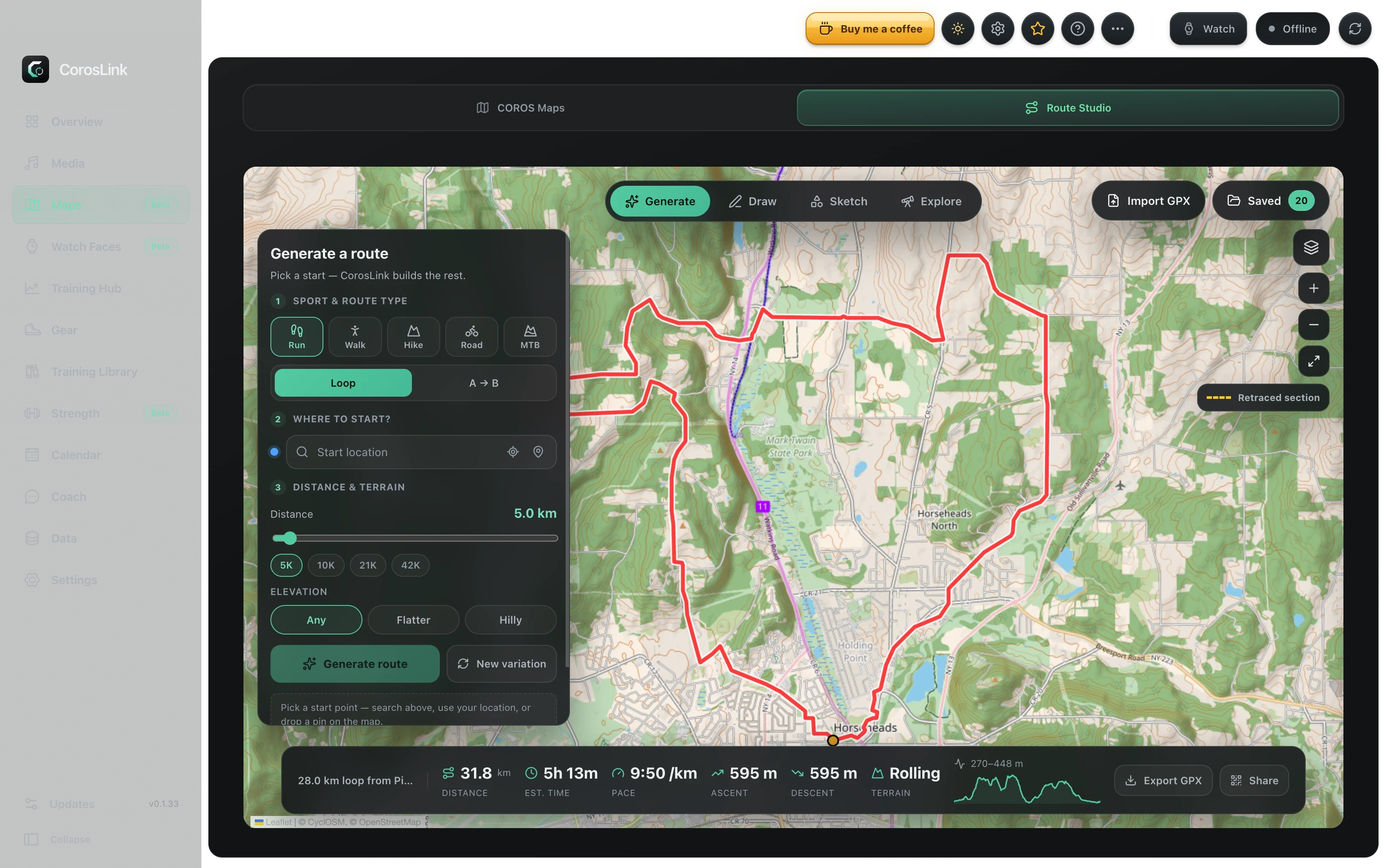
Maps · Route Studio · Saved routeLive app capture
Map packages
Official COROS Landscape and Topo regions from the COROS map manifest
Search and filter regions, then download and cache them locally
Watch storage panel showing maps versus other usage and free space
Install to the watch over USB with live copy progress
Choose where cached packages live on your computer
Which COROS watches support maps
Offline maps need a COROS watch with map support, such as the PACE Pro, APEX 2, APEX 2 Pro, VERTIX 2, VERTIX 2S, NOMAD or APEX 4. The PACE 3 does not display maps. Check the compatibility notes in the docs for your model before downloading large regions.
How the data flows
CorosLink downloads packages directly from COROS map servers to a local cache folder. On install, it copies the files to the watch's map folder over USB. Nothing passes through a CorosLink server, and you can clear the cache whenever you want to free up disk space.
Routes, too
The same Maps section includes a route builder. Plan a loop or point-to-point route on the big screen, check the elevation profile, export a GPX file and send it to your phone with a QR code for import into the COROS app.
Step by step
How to install offline maps on a COROS watch with CorosLink
1
Open Maps in CorosLink
Install the free desktop app for macOS, Windows or Linux and open the Maps section. The Map packages tab lists every official COROS Landscape and Topo region.
2
Download the regions you need
Search or filter by region, then download. Packages are saved once to a local cache so you can reuse them later.
3
Connect your watch
Plug the COROS watch in with its USB cable. The storage panel shows how much space maps already use and how much is free.
4
Install
Click Install on each cached package. CorosLink copies the files to the watch map folder and shows progress. Unplug when the copy completes and the maps appear on the watch.
Can I download COROS maps on a computer instead of my phone?
Yes. CorosLink reads the official COROS map manifest, downloads Landscape and Topo packages to your Mac, Windows PC or Linux machine, and installs them on the watch over USB.
Are these the official COROS map packages?
Yes. CorosLink fetches the same regional packages COROS publishes for its watches; it does not generate or modify map data.
Is USB faster than syncing maps from the phone?
Usually much faster. The download runs on your computer's connection and the copy to the watch happens over the USB cable rather than Bluetooth or Wi-Fi.
Does the PACE 3 support offline maps?
No. The PACE 3 does not have map display. Map-capable models include the PACE Pro, APEX 2 and 2 Pro, VERTIX 2 and 2S, NOMAD and APEX 4.
Where are downloaded map packages stored?
In a local cache folder that you can choose in CorosLink. You can reuse the cache for another watch or delete it to reclaim disk space.